


Google Assistant
3.948.56K Reviews
App Specs
- Version
- 0.1.884448652
- Updated On
- License
- Free
- Downloads
- 5,000,000,000+
- Developer
- Google LLC
- Categories
- Productivity
- Platform
- Android, iOS
Screenshots
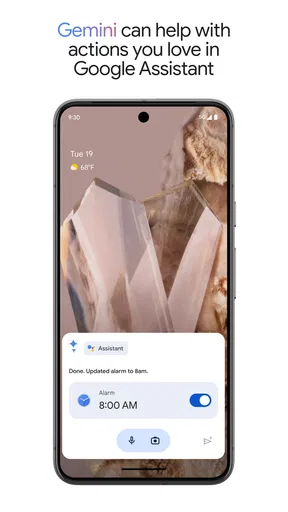
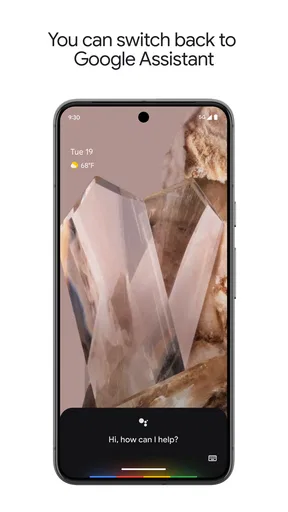
 Analysis by AppCompare
I judge a voice assistant less by how clever it sounds and more by whether it saves me a few taps when I’m busy. Google Assistant is most useful when I already rely on Google services or want to handle quick tasks by speaking instead of opening several apps. It is a free productivity app from Google LLC, rated for Everyone, and its broad reach—over five billion installs—makes it a familiar option for many phone users. My recommendation depends on your habits: it can be a convenient layer over everyday phone tasks, but it is not a replacement for every dedicated app.
Choose it for the jobs you repeat
Before making it part of your routine, think about which jobs you actually want to hand off. A spoken timer while cooking, a quick reminder, or a question you would otherwise type are good fits because they are brief and forgiving. Longer tasks that need careful editing, detailed comparison, or a precise sequence of choices are usually easier to complete on screen. I get the most from Assistant when I treat it as a shortcut, not as a universal command center.
That distinction matters if you are comparing it with a conventional search app or a typed chatbot. Search is better when I want to scan several sources and judge them myself; a chatbot is more suited to sustained back-and-forth drafting or exploration. Assistant makes more sense when I want a quick answer or action without stopping what I am doing. Its value is convenience, not a guarantee that every spoken request will be understood exactly as intended.
Guides and Analysis on Google Assistant
Small habits that make voice control work better
I have found it helps to phrase one request at a time, especially when the task involves a reminder or a calendar entry. Then I check the result rather than assuming the assistant caught every detail. This is a useful habit for names, dates, and similar information: speech recognition can be handy, but a quick visual check prevents a small misunderstanding from becoming a missed appointment.
Another practical approach is to reserve voice commands for situations where hands-free input is genuinely easier. If I am chopping ingredients, a timer is a natural request; if I am in a quiet shared space, typing may be quicker and less awkward. Voice access also depends on the device and how it is set up, so I would test the way you plan to invoke Assistant before building a routine around it.
Where a dedicated tool can be better
Assistant sits between the phone’s built-in controls and specialist apps. That makes it useful for quick actions across different services, but a dedicated calendar, note-taking app, navigation tool, or smart-home app can offer a clearer workspace when I need to inspect or edit several details. I would keep those apps for the work they handle best and use Assistant to get to common actions faster.
There is also a comfort trade-off. Speaking a request can feel effortless at home or in the car, while it may be inconvenient in a meeting, on public transport, or around people who do not need to hear the details. If you prefer a quiet, predictable workflow, a keyboard and direct app controls may suit you better. Assistant is strongest when its hands-free convenience outweighs the extra step of checking what it understood.
Worth Reading Before You Choose

Basketball Stars: Multiplayer Is Fast, but Can It Recover When Matches Go Wrong?

WEBTOON Turns Phone Updates Into a Better Reading Routine

Link to Windows Runs on Shared Habits, Not Social Feeds

How Alibaba.com Dominates the B2B Marketplace

Metro's Quiet Rise: Redefining Mobile Communication

Harnessing Ecosystem Power with Phone Tracker by Number
What is Google Assistant?
In case you're not in the loop, Google Assistant is a virtual assistant that's ready to help you out with a myriad of tasks. Whether you're trying to control your smart home, set reminders, or simply find out who won last night's game, this app has got you covered. It's available on both Android and iOS, making it super accessible for almost everyone.
Getting Started with Google Assistant
Setting up Google Assistant is a breeze. All you need is a Google account, and you’re pretty much good to go. Once you’ve got it installed, you just say “Hey Google” or hold down the home button, and boom—your assistant is ready to listen. It's like magic, but real!
The interface is sleek and intuitive. You don’t need to be a tech wizard to figure it out. I love how it seamlessly integrates with other Google services, making it a one-stop-shop for managing your digital life.
Features That Stand Out
One of my favorite parts of using Google Assistant is its ability to control smart home devices. I can adjust my thermostat, turn off the lights, or even lock my door, all without moving from the couch. It's a game-changer, especially on those lazy days.
The app also excels in providing real-time information. Whether you need weather updates, traffic reports, or the latest news, just ask, and Assistant will deliver. It’s like having a personal news anchor at your beck and call.
Another fantastic feature is the integration with third-party apps. You can order food, book a ride, or even play your favorite tunes. It feels like your phone can do anything—just by asking nicely!
Real-Life Applications
Beyond the cool tech features, what really makes Google Assistant shine is its practical usage in everyday life. For instance, if you’re a frequent traveler, you can ask it to translate phrases or convert currency on the fly. It takes the stress out of navigating new places.
For those of us who have a hard time keeping up with our schedules, the calendar integration is a lifesaver. You can set reminders, check your agenda, and even create to-do lists without breaking a sweat. Staying organized has never been so easy.
Personal Experience
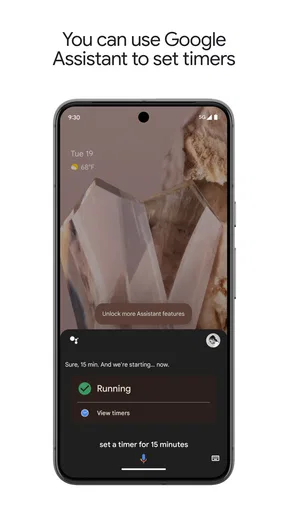
I’ve personally found Google Assistant to be incredibly helpful. It's like having a tech-savvy friend who’s always there when you need them. I love being able to ask random questions or set quick timers while cooking. And on those days when I can’t find my phone, I just ask the nearest Assistant-enabled device, "Where’s my phone?" and it rings. Simple, yet effective.
The voice recognition is also quite impressive. It picks up on natural speech pretty well, which is great for those mornings when I'm still waking up and not quite articulate yet.
Everyday workflow: from a reminder to a finished task
A useful test is a busy morning with several small jobs competing for attention. I might ask for a timer while breakfast cooks, add a reminder to pick up groceries, then check what is on my calendar before leaving. The advantage is not that Assistant plans the whole day for me; it is that I can capture a thought at the moment it occurs instead of trusting myself to remember it later.
For a better result, I keep requests specific and separate. A reminder with a clear action and time is easier to verify than a string of loosely connected instructions. After setting one, I look at the confirmation or open the relevant calendar or reminder view to make sure the timing is right. This small check is especially worthwhile when the task matters, since voice input is convenient but can mishear a word or date.
What to expect from its answers
For a straightforward fact, a weather check, or a quick conversion, asking aloud can be faster than unlocking the phone and typing. For a decision that depends on context—choosing between travel routes, evaluating a purchase, or researching a health concern—I would use Assistant only as a starting point. I prefer to inspect the information on screen and compare sources rather than treating a short spoken answer as the whole picture.
This is also why it does not replace a full search workflow for me. Search lets me browse, refine terms, and judge what is relevant; Assistant is useful when the request is simple enough that I do not need to inspect a list of results. If an answer feels incomplete, switching to a typed search is a sensible next step, not a failure of the app.
What changes between phones and setups
Assistant is available on Android and iOS, but the way it fits into a phone can differ. On Android, the assistant may feel closer to the operating system’s everyday controls; on an iPhone, I would think of it more as an app alongside Apple’s built-in assistant and other Google apps. I would not assume that every shortcut behaves identically across devices. Before depending on a particular voice trigger, I would try it on the phone I actually use.
Its usefulness also depends on the services and devices you already have. Smart-home control is appealing when your equipment is compatible and configured, but it is not a reason to install the app if you do not own or use connected devices. Likewise, calendar and reminder requests are most convenient when they fit the account and tools you already check. The best setup is the one that avoids scattering important information across places you rarely open.
Privacy, comfort, and choosing when to speak
Voice control involves talking to a device, so I would choose the setting deliberately. At home, asking for a timer or a light adjustment can feel natural. In a crowded place, I would rather type than say a personal reminder aloud. If you are cautious about voice assistants, review the controls and settings available in the app and your Google account, and use only the features you are comfortable with.
There is a second kind of friction: sometimes a request is faster to perform directly. If I already have a calendar open, tapping an event to edit it gives me a clear view of every field. Assistant is better for capturing a simple item hands-free; direct editing is better when I need to revise several details or make sure nothing is ambiguous. Knowing when to switch methods is what makes the tool feel helpful rather than fussy.
Who should install it—and who can skip it
I would recommend trying Assistant if you use Google services, ask frequent quick questions, set reminders on the move, or want a voice-driven way to reach compatible smart-home controls. It is also a sensible option for someone who wants to experiment without paying for the app: it is free, and its Everyone age rating makes it broadly suitable. The current version is 0.1.884448652, and it requires Android 6.0 or later on Android devices.
I would skip it if you rarely use voice commands, prefer to keep your tasks inside a single dedicated app, or find speaking to a phone inconvenient. Someone who wants detailed project planning will likely be happier with a task manager designed for sorting and reviewing complex work. Someone who mainly wants web research should use search directly. Assistant can help with small actions around those workflows, but it is not a substitute for them.
Switching without disrupting your routine
If you already use another assistant, I would not move every habit at once. Start with one low-risk task, such as a cooking timer or a simple reminder, and see whether the interaction feels natural on your device. Then decide whether calendar checks or smart-home requests are worth adding. This makes it easier to notice what works without creating two competing places for important reminders.
Keep your existing calendar or task app as the source you trust while you test voice entry. Confirm that new items appear where you expect, and avoid relying on a new routine for an important deadline until you have checked it a few times. The switching cost is less about learning complicated controls and more about building confidence that the assistant is sending each request to the right place.
How the app holds up as a daily helper
The public response is mixed but substantial: it has a 3.8 average from around 1.3 million ratings, with roughly 48,000 written reviews. I read that as a reminder that voice assistants are personal tools. A person who values fast hands-free actions may forgive occasional misinterpretations; someone who expects every request to work perfectly may find the same friction more noticeable.
In my view, Google Assistant earns its place through convenience rather than novelty. It works best as a practical layer for short requests—timers, reminders, quick information, and supported device controls—while dedicated apps remain better for careful editing and deep work. I would give it a try if those small interruptions add up in your day, then keep only the routines that genuinely save effort.
Final Thoughts
Wrapping up, Google Assistant is more than just a virtual helper; it’s a tool that enhances everyday life. From managing smart devices to answering life’s little questions, it’s a versatile app that’s worth checking out. If you haven’t tried it yet, give it a go. You might just find it’s the new best friend you didn’t know you needed.
With easy download options for both Android and iOS, there’s really no reason not to invite Google Assistant into your life. Who knows? You might find yourself wondering how you ever got along without it!
Pros
- Seamless integration with Google services.
- Voice recognition is highly accurate.
- Supports smart home device control.
- Multilingual capabilities are robust.
- Offers personalized recommendations.
Cons
- Limited offline functionality.
- Requires constant internet connection.
- Privacy concerns with data collection.
- Occasionally misinterprets commands.
- Some features region-specific.
FAQs for Google Assistant
What devices are compatible with Google Assistant?
Google Assistant is compatible with a wide range of devices. It can be used on Android smartphones and tablets running Android 5.0 or higher, iPhones with iOS 10 or later, and smart home devices like Google Nest. Some smart TVs and wearables also support Google Assistant.
How do I activate Google Assistant on my device?
To activate Google Assistant on an Android device, you can say 'Hey Google' or 'OK Google' while the screen is on, or press and hold the home button. On iOS devices, you can activate it by opening the Google Assistant app. Ensure your microphone permissions are enabled for optimal performance.
Can Google Assistant understand multiple languages?
Yes, Google Assistant supports multiple languages and can even switch between them seamlessly. You can set up to two languages simultaneously. This feature is particularly useful for bilingual users, allowing you to give commands in either language without changing settings each time.
Is Google Assistant safe to use with my personal data?
Google Assistant is designed with user privacy in mind. It only sends audio data to Google after hearing the activation phrase. Users can review and delete their voice activity data through the Google Account settings, giving them control over their personal information.
What are some useful features of Google Assistant?
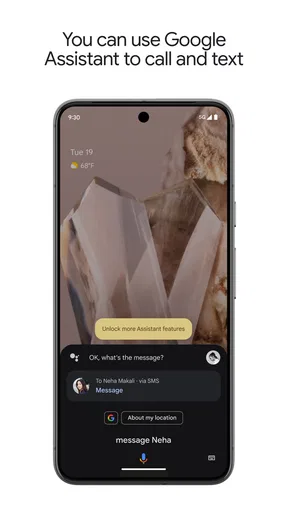
Google Assistant offers a wide array of features including setting reminders, sending texts, making calls, providing real-time weather updates, controlling smart home devices, and even playing music. It integrates with third-party apps and services, enhancing its functionality and user convenience.


